How to Create a WhatsApp AI Agent for Your Business (No Code)
Learn how to set up an AI-powered WhatsApp agent that handles customer inquiries, takes orders, and provides 24/7 support for your business — without writing a single line of code.
The Problem Businesses Face
- Customers expect instant replies on WhatsApp but you can't be online 24/7
- Hiring customer support staff is expensive, especially for small businesses
- Repetitive questions waste your team's time — menu prices, business hours, order status
- Missed messages mean lost sales and unhappy customers
- Building a custom chatbot requires developers, APIs, and months of work
- Existing chatbot tools are too complex or require technical knowledge
Metallm Solution
- Create a fully personalized WhatsApp AI agent in under 5 minutes
- No code, no developers, no API setup required
- Your agent knows your business — products, prices, hours, policies
- Handles customer questions, takes orders, and sends media (menus, catalogs)
- Powered by advanced AI that understands context and speaks naturally
- Works 24/7 — never misses a message, never takes a day off
- Connect your WhatsApp in seconds with a simple QR code scan
Step-by-Step Setup Guide
Go to Metallm Agent Page & Sign Up
Open your browser and navigate to metallm.tech/agent. If you don't have an account yet, click Sign Up to create a free business account. You'll get 20 free messages to test your agent.
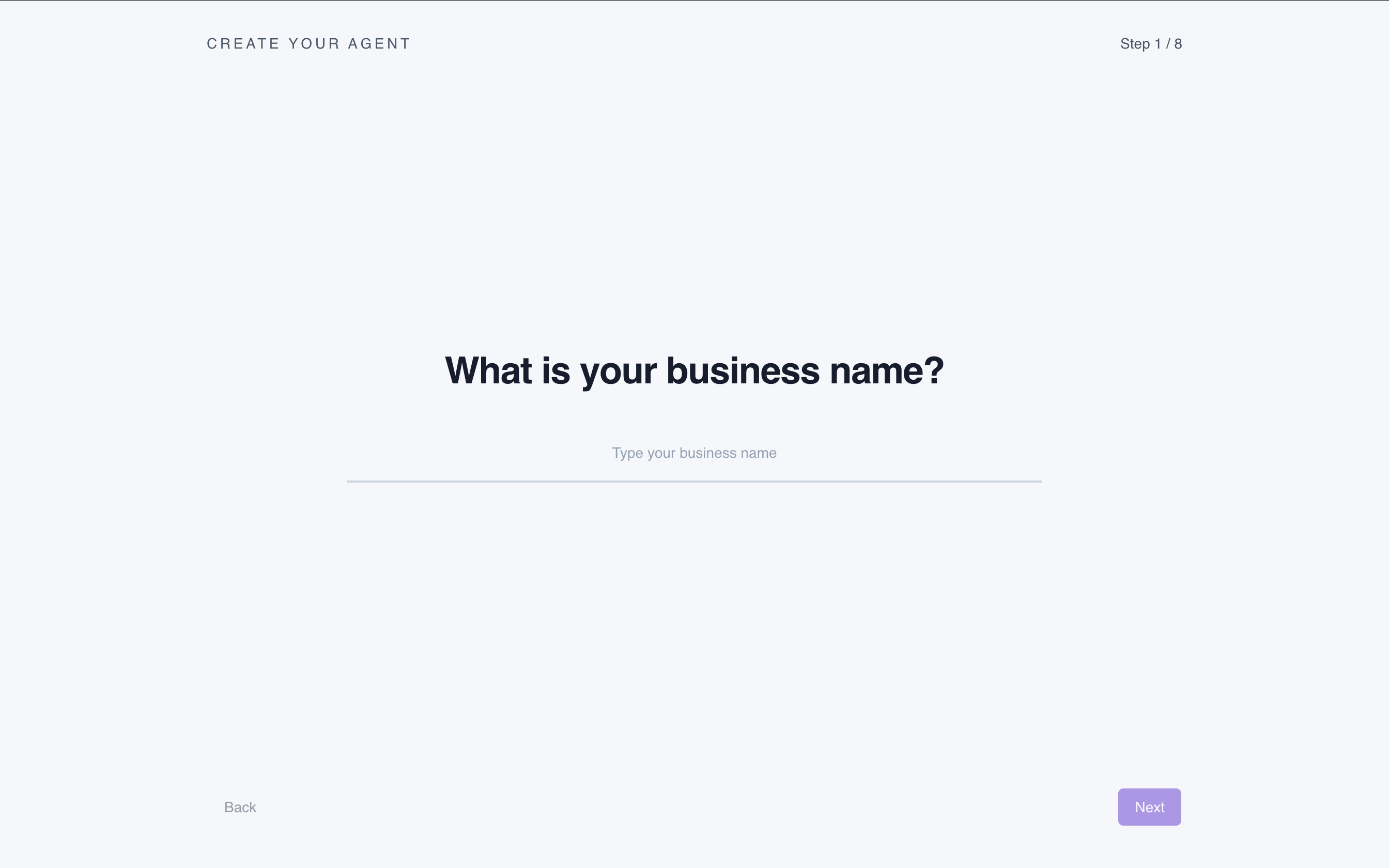
Once logged in, click "Create Agent" to start the setup wizard. You'll see "CREATE YOUR AGENT" at the top with Step 1/8.
Enter Your Business Name
The first question is "What is your business name?" — type your business name exactly as you want customers to see it. This name will be used by the AI agent when introducing itself to customers.
For example: "RK Pizza", "Ali Electronics", "Noor Beauty Salon", etc.
Add Your Website URL (Optional but Recommended)
In Step 5/8, you'll be asked "What is your website?" — this is optional but highly recommended. If you provide your website URL, the AI agent will crawl it to learn about your products, services, and business details automatically.
This means less manual setup for you. The agent becomes smarter and more accurate with your website data.
.png)
Add Media & Extra Instructions
In the final setup step (Step 8/8), you can add media files like your menu images, product catalogs, deal banners, or price lists. These will be saved in your agent's workspace and the AI can send them to customers when asked.
You can also type extra business instructions — like "Always greet in Urdu first", "Mention our delivery is free above Rs. 1000", or "Don't take orders after 11 PM".
.png)
Wait for Agent Personalization
After clicking "Create Agent", Metallm will personalize your AI agent automatically. You'll see a loading screen saying "Personalizing your agent..." — the system is:
- Evaluating tools and filling out configuration files
- Writing notes to PRODUCTS.md (your product database)
- Setting up IDENTITY.md (agent personality and role)
- Configuring BOOTSTRAP.md (startup instructions)
This usually takes 15-30 seconds. Don't close the page.
.png)
Your Agent Dashboard is Ready
Once personalization is complete, you'll see your Agent Dashboard. Here you can:
- View and edit Agent Files — IDENTITY.md, SOUL.md, AGENTS.md, USER.md, BOOTSTRAP.md, TOOLS.md, PRODUCTS.md
- Check your trial status — 20 free messages included
- Switch between Chat and Settings tabs
- Manage sessions — Main and Bootstrap sessions
The IDENTITY.md file contains your business details like name, agent role, tone, signature emoji, and languages. You can edit any of these files to customize your agent further.
.png)
Connect Your WhatsApp
The final step! Click "Go to Settings" or the connect button to link your WhatsApp. A QR code will appear with instructions:
- Open WhatsApp on your phone
- Go to Settings → Linked Devices
- Tap "Link a Device"
- Scan the QR code shown on screen
Once scanned, you'll see "QR ready" confirmation. Click "Check Linked" to verify the connection. Your AI agent is now live on your WhatsApp!
.png)
Who Can Use a WhatsApp AI Agent?
Restaurants & Food Delivery
Your AI agent can share the menu, take orders, confirm delivery times, and answer questions about ingredients or dietary options. Customers message "show menu" and instantly receive your menu images. The agent handles peak-hour order volume without delays — no more missed orders during rush time.
Example interaction: Customer sends "What's your pizza deal today?" → Agent replies with today's deals, sends the deals banner image, and asks if they want to place an order.
Salons & Beauty Services
Handle appointment bookings, share service menus with pricing, answer FAQs about treatments, and send before/after photos. Your agent knows your availability, prices, and services — customers can book without calling.
Example interaction: Customer sends "How much for hair coloring?" → Agent shares the pricing list, explains available color options, and offers to book an appointment.
Retail & E-Commerce Stores
Answer product inquiries, check stock availability, share product catalogs, process simple orders, and handle return/exchange questions. Works for clothing, electronics, groceries, and any physical or digital product business.
Example interaction: Customer sends "Do you have iPhone 16 Pro in stock?" → Agent confirms availability, shares pricing and color options, and guides towards purchase.
Real Estate & Services
Share property details, answer pricing questions, schedule viewings, and qualify leads. For service businesses (plumbers, electricians, tutors), handle scheduling, pricing inquiries, and availability — all without you being online.
Example interaction: Customer sends "Any 2-bedroom apartments in Gulberg?" → Agent shares available listings with photos, prices, and offers to schedule a visit.
Metallm vs WATI vs Respond.io
Why Metallm is Different
Most WhatsApp automation tools like WATI and Respond.io require the official WhatsApp Business API — which means a lengthy approval process, phone number verification with Meta, template message approvals, and per-conversation pricing. They also use flow-based chatbots that follow rigid decision trees and break when customers ask unexpected questions.
Metallm takes a fundamentally different approach:
- No API approval needed — connect via QR code in seconds, same as WhatsApp Web
- Real AI, not flow charts — powered by advanced language models that understand context, tone, and intent naturally
- Setup in 5 minutes — WATI/Respond.io require hours of flow builder configuration
- No per-message API fees — flat subscription instead of Meta's per-conversation pricing
- Handles unexpected questions — AI adapts to any customer query, not just pre-programmed flows
- Sends media intelligently — agent decides when to share menus, catalogs, or images based on conversation context
- No developer needed — WATI webhooks and Respond.io integrations require technical setup
Troubleshooting & Common Issues
QR Code Expired
QR codes expire after a short time for security. If the QR code on screen has expired, click "New QR" to generate a fresh one. Make sure to scan quickly after it appears.
WhatsApp Disconnected
If your phone loses internet or WhatsApp logs out linked devices, the agent will go offline. Metallm detects this automatically and shows a reconnection option. Simply scan a new QR code to restore the connection. Your agent configuration is preserved.
Agent Giving Wrong Answers
If the agent provides inaccurate information about your business, go to the Agent Dashboard and edit the relevant files:
- PRODUCTS.md — update product names, prices, and availability
- IDENTITY.md — update business hours, location, or policies
- Extra Instructions — add specific rules like "Don't offer discounts" or "Always ask for delivery address"
Changes take effect immediately after saving — no restart needed.
Agent Not Sending Media
Make sure you uploaded your media files (menu images, catalogs) during setup or from the dashboard. The agent can only send files that exist in its workspace. Supported formats: JPG, PNG, PDF. Keep file sizes under 5MB for fast delivery.
Frequently Asked Questions
How much does it cost?
Metallm offers a free trial with 20 messages. After that, affordable subscription plans are available based on your message volume. Unlike WATI or Respond.io, there are no per-message API fees or Meta conversation charges.
Do I need coding skills?
No. The entire setup is visual and no-code. You fill in business details, upload media, and scan a QR code. Takes under 5 minutes from start to live agent.
Is this better than WATI or Respond.io?
For small and medium businesses that want quick setup without the WhatsApp Business API approval process — yes. Metallm uses real AI instead of rigid flow-based chatbots, connects via QR code (no Meta verification), and requires zero technical knowledge. WATI/Respond.io suit large enterprises needing official API features.
Can the agent send images and menus?
Yes. Upload your menu images, product catalogs, or deal banners during setup. The AI agent automatically sends relevant media when customers ask about your products.
What happens if WhatsApp disconnects?
Metallm detects disconnection automatically and provides a new QR code. Your agent configuration and history are preserved — just scan again to resume.
What businesses can use this?
Any business communicating on WhatsApp — restaurants, salons, retail stores, real estate, clinics, tutoring centers, service providers. If your customers message you on WhatsApp, an AI agent can handle it.
Your WhatsApp AI Agent is Live!
Customers can now message your WhatsApp number and get instant, intelligent responses 24/7. Your agent handles orders, answers questions, and sends media — all automatically.
Create Your Agent Now →